 Significant Locations
The short answer: the “213 records” summary in the iOS 18 screen below won’t open into a full history. My app can’t recover those records either. It can save new visits after setup, in a timeline you can actually open.
I used to use Significant Locations to work out when I arrived at work and when I left. After iOS 15, I found myself tapping a record count that went nowhere. A phone full of location records, and I still couldn’t finish my timesheet.
I searched around and kept finding instructions for screens that weren’t there anymore. Eventually, I taught myself to code and built Significant Locations to keep a useful history going forward.
First, check which screen you’re on.
On iOS 18, open Settings → Privacy & Security → Location Services → System Services → Significant Locations. Authenticate if prompted.
If you see a Summary count and a few Recent Records, you’re in the right place. In this example, the count doesn’t open a list of all the visits. You haven’t missed a button.
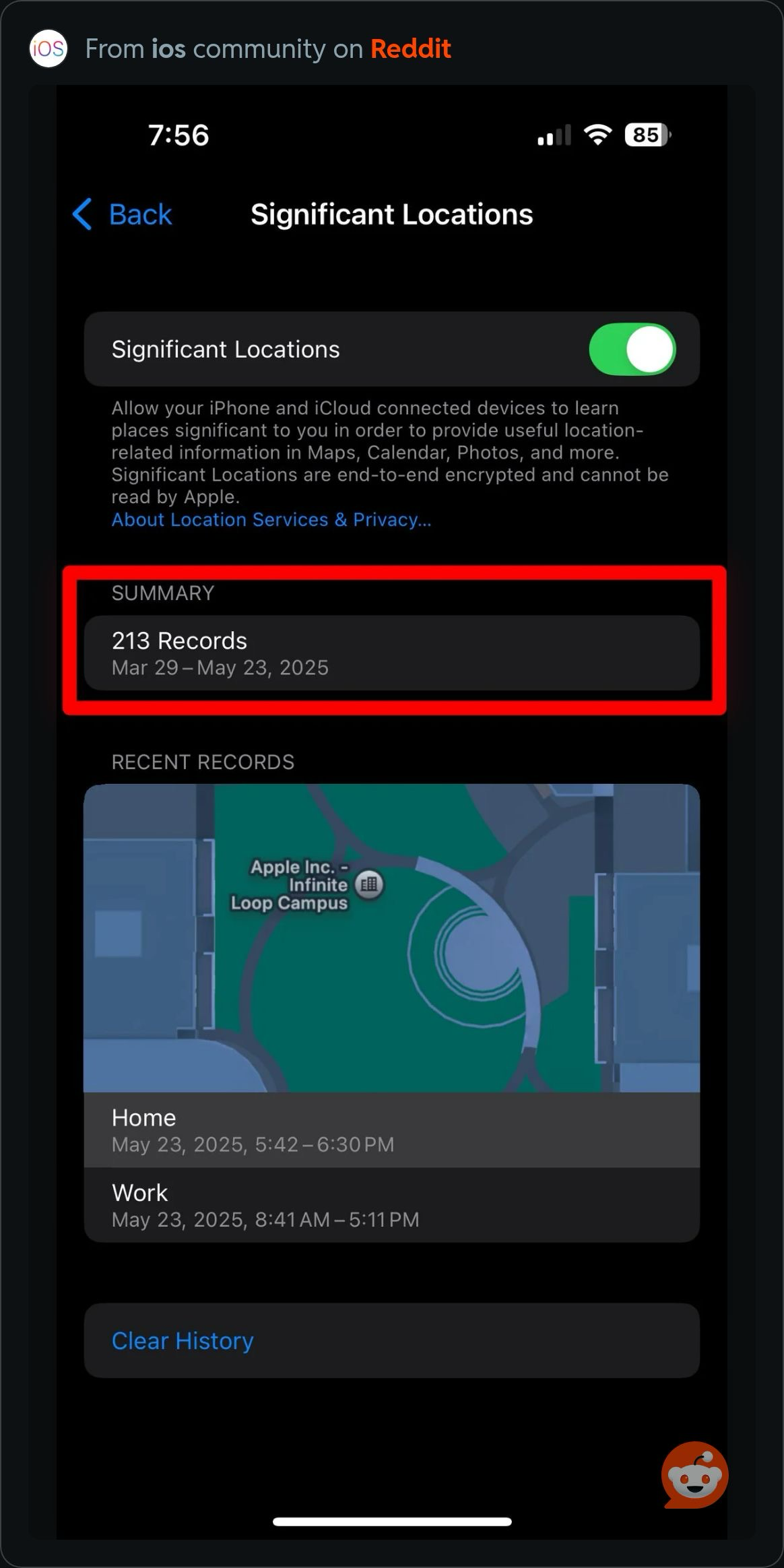
Can the app show those hidden records?
No—and I don’t want you downloading it expecting that. Apple’s history in Settings is private. The app doesn’t unlock or import it.
Instead, the app receives new location updates through Apple’s location services and keeps its own history. That means you can see future visits, search them, and check how long you spent somewhere. It isn’t a copy of Apple’s Settings database.
Here’s how to start keeping a history.
- Install Significant Locations. The current app requires iOS 26 or later.
- Open it and follow the setup prompts. Allow Always location access and turn on Precise Location.
- Go about your day. New location updates will build your Timeline.
It won’t fill in the days before you installed it. iOS decides when updates arrive, so some visits may take time to appear or be missed.
And here’s the timesheet part.
Choose your workplace from your recorded locations and create a custom Work tab. When your timesheet is due, open that tab to review your visits, the time spent on each day, and your weekly total.
You can also check arrival and departure times in the Timeline. The idea is to make it easier to remember your hours without keeping a manual location log. Times are approximate, so check the entries before submitting your timesheet.
The last five days of history are free to view. A subscription unlocks older history and CSV or JSON export. Your recorded history stays on your iPhone.
Using a newer version of iOS?
The Settings screenshot above is from iOS 18. Newer versions can look different, and Apple Maps has a Visited Places feature on supported versions and in supported regions. Apple’s current guide covers that.
If something still isn’t working, check the setup help or email me.
Start with your next visit.
A timeline you can read. Work hours you can look up.