 Significant Locations
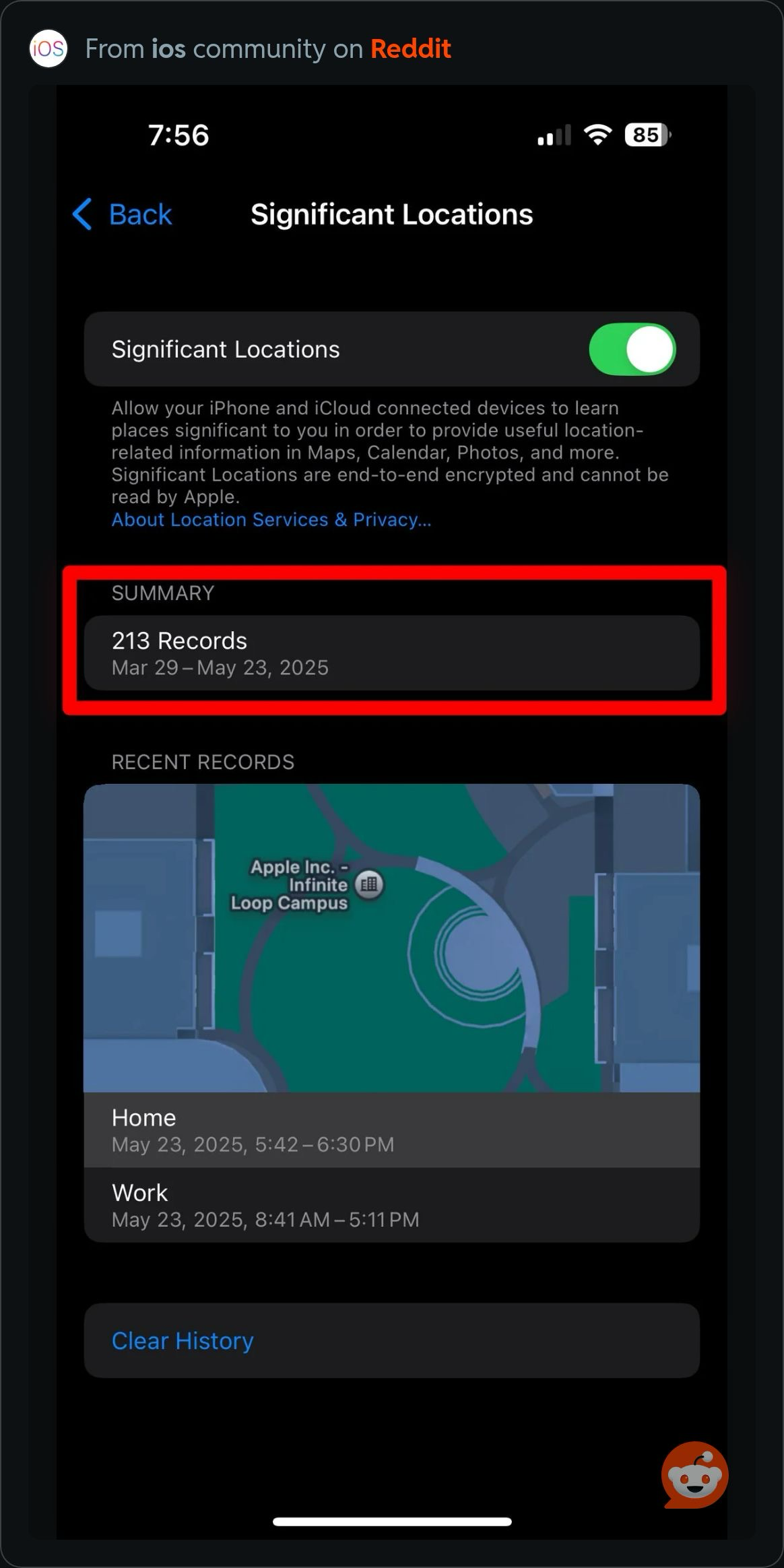
The short answer: on the iOS 18 screen shown below, the Summary count doesn’t open into a full list of records. The Significant Locations app can record future location history after setup, but it cannot unlock the records already stored by Apple.
I used to rely on my iPhone’s Significant Locations log to help fill in timesheets. Then, after iOS 15, I found myself staring at a record count with no way to open the full history. Hundreds of records, and none of the details I actually needed.
I went looking for an answer and kept finding guides that described screens I couldn’t see. Eventually, frustration turned into a project: I taught myself to build an app so I could keep a useful record going forward. That app is Significant Locations.
1. Find Significant Locations in Settings
On iOS 18:
- Open Settings.
- Go to Privacy & Security → Location Services.
- Scroll down and tap System Services → Significant Locations.
- Authenticate if prompted, then look at Summary and Recent Records.
You may see a count such as “213 Records,” a date range, and a limited set of recent visits. In the example below, tapping that summary does not reveal all 213 records.
2. Understand what the app can access
Apple’s Significant Locations feature in Settings and the Significant Locations app are separate things.
The app uses Apple’s Core Location significant-change service to receive location updates and build its own history. It does not read Apple’s private Significant Locations database. Installing it won’t recover the 213 records in the screenshot, and its future entries may differ from those Apple shows in Settings.
For the technical background, see Apple’s significant-change location service documentation.
3. Start saving future visits
- Download Significant Locations from the App Store. The current version requires iOS 26 or later.
- Open the app and complete the location permission prompts.
- Allow Always location access and enable Precise Location so the app can receive updates in the background.
- Go about your day, then open the Timeline or map to review the history the app has recorded.
Your history starts after setup. iOS controls when location updates are delivered; some visits may be delayed or missed. Low Power Mode and other system conditions can affect recording.
4. Put your history to use
- Custom timesheets. Pick a place you’ve visited, create a tab such as Work, and review your visits and time spent there.
- A searchable timeline. Look up a place, region, or country and find the matching entries in your history.
- A map of your places. Explore recorded locations and revisit the details of past visits.
- Widgets. See your current place and time spent there from your Home Screen or Lock Screen.
- History export. Subscribers can export recorded history as CSV or JSON.
Access the last five days of history for free. A subscription unlocks older history and export; current plans and regional prices are shown in the app. Your recorded history is stored locally on your device, and we don’t sell your location data.
Arrival and departure times are approximate. If you’re using the app to help fill in timesheets, review the entries before relying on them.
What about newer versions of iOS?
This guide’s screenshot and Settings steps describe iOS 18. Newer versions may use different labels and offer other ways to review places. Apple Maps also has a Visited Places feature on supported versions and in supported regions. See Apple’s current Visited Places guide for details.
The app’s purpose stays simple: keep its own searchable record of future visits, with tools for understanding your time. It cannot import or unlock Apple’s existing Settings history.
Make your next visit a record.
Start with five days of free history. Need help setting up? Visit support.