 Notification History Archive
Start saving notifications.
Add the included shortcut, enable its automation, and check that your test notification reaches the archive.
Get startedSet up Shortcuts, choose your apps, and find notifications in your archive.
Add the included shortcut, enable its automation, and check that your test notification reaches the archive.
Get startedInclude the app name, your device model, iOS version, app version, and what happened.
Open the app and tap Add Shortcut during setup, or reopen Settings → Set Up Shortcuts. In Shortcuts, open Notification History Archive, tap Edit if needed, choose the apps to capture (including Notification History Archive for the test), and turn on Automation. Return to the app, allow its test notification, and wait for that test to appear in your archive.
Open the setup screen’s three-dot menu and use Method 2 to share the shortcut file to Shortcuts. Manual instructions are also available in that menu.
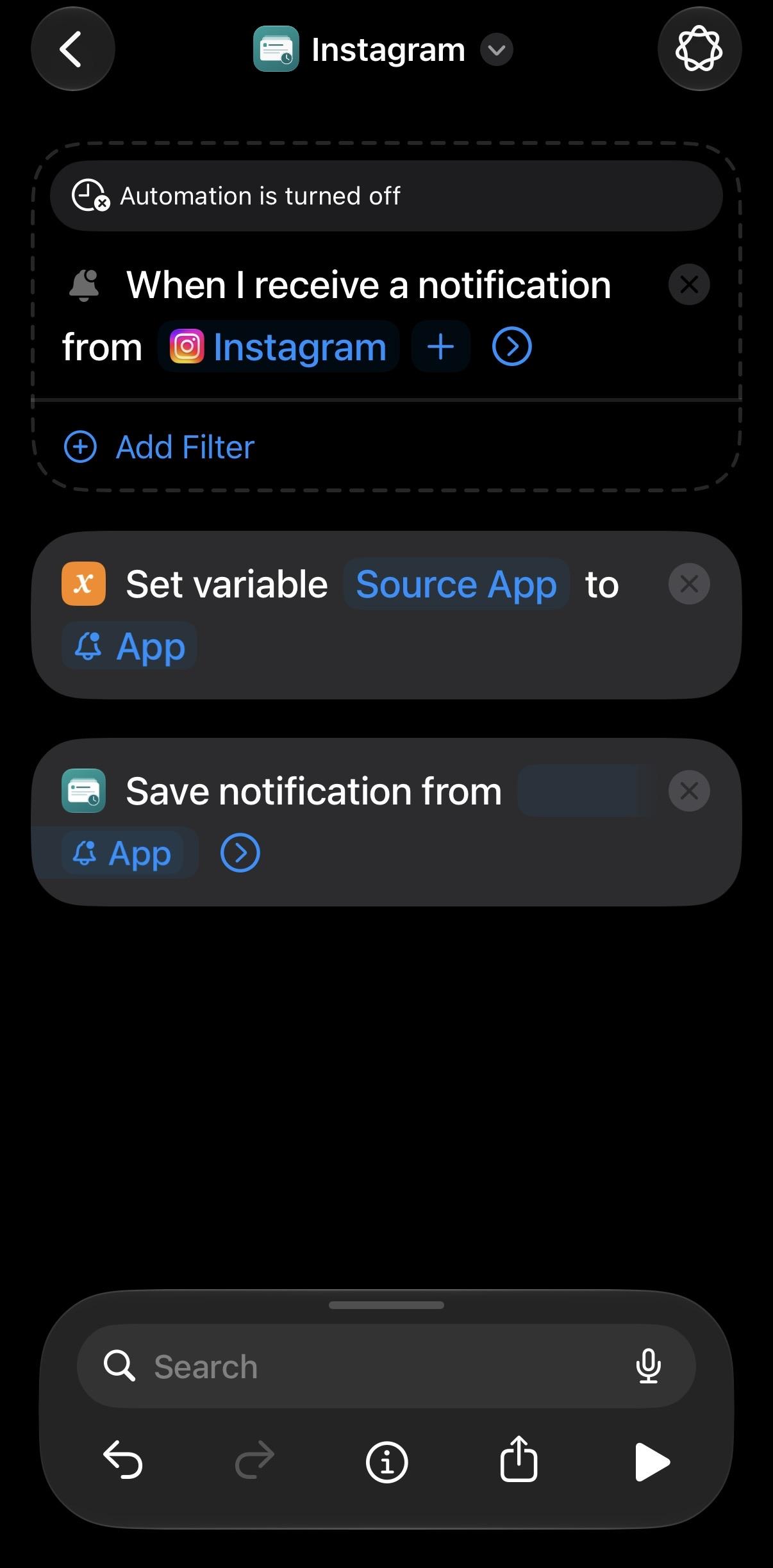
Open Apps → More → Add More Apps for the illustrated guide. In Shortcuts, edit the notification trigger and tap + beside the selected apps. Choose the apps you want and keep Automation enabled.
Make sure its app is selected and Automation is enabled. Capture starts after setup, and notification previews and Shortcuts determine what text is available. After a restart, unlock your device once before testing. In the prepared shortcut, leave Sender empty: some notifications have no sender, and reading a missing value can interrupt capture.
Only if their notification previews were captured before the message was removed. Long previews may be cut off. The app cannot retrieve old messages or read the conversation itself. See the examples.
They remain stored unless you delete them or enable automatic deletion. Viewing older entries and exporting JSON or CSV requires Full History access through a subscription or lifetime purchase. Marking an entry as saved protects it from automatic deletion; it does not bypass the five-hour viewing limit.
Open Settings → Unlock Full History and choose Restore Purchases using the Apple Account you purchased with. Use Manage Subscription to manage renewal. If you are switching to lifetime access, follow the purchase screen’s instructions to turn off subscription renewal first. Apple’s standard terms of use apply.
Swipe to delete an entry, or use Select for several. To stop future capture, disable the automation in Shortcuts. Deleting an archived copy does not remove the original notification or message from another app.
This Instagram example shows the trigger and Save Notification action, but Automation is turned off. Turn it on before testing capture.
Use the notification trigger’s app selector to choose Instagram, WhatsApp, or any other apps you want to include.